Connecting to the PLC
info
At this point, you should be physically connected to the managed or unmanaged switch, and all your host and virtual machine settings to include IP and subnet/gateway should be set correctly
- Open your Rockwell Automation Studio 5000 Logix Designer software
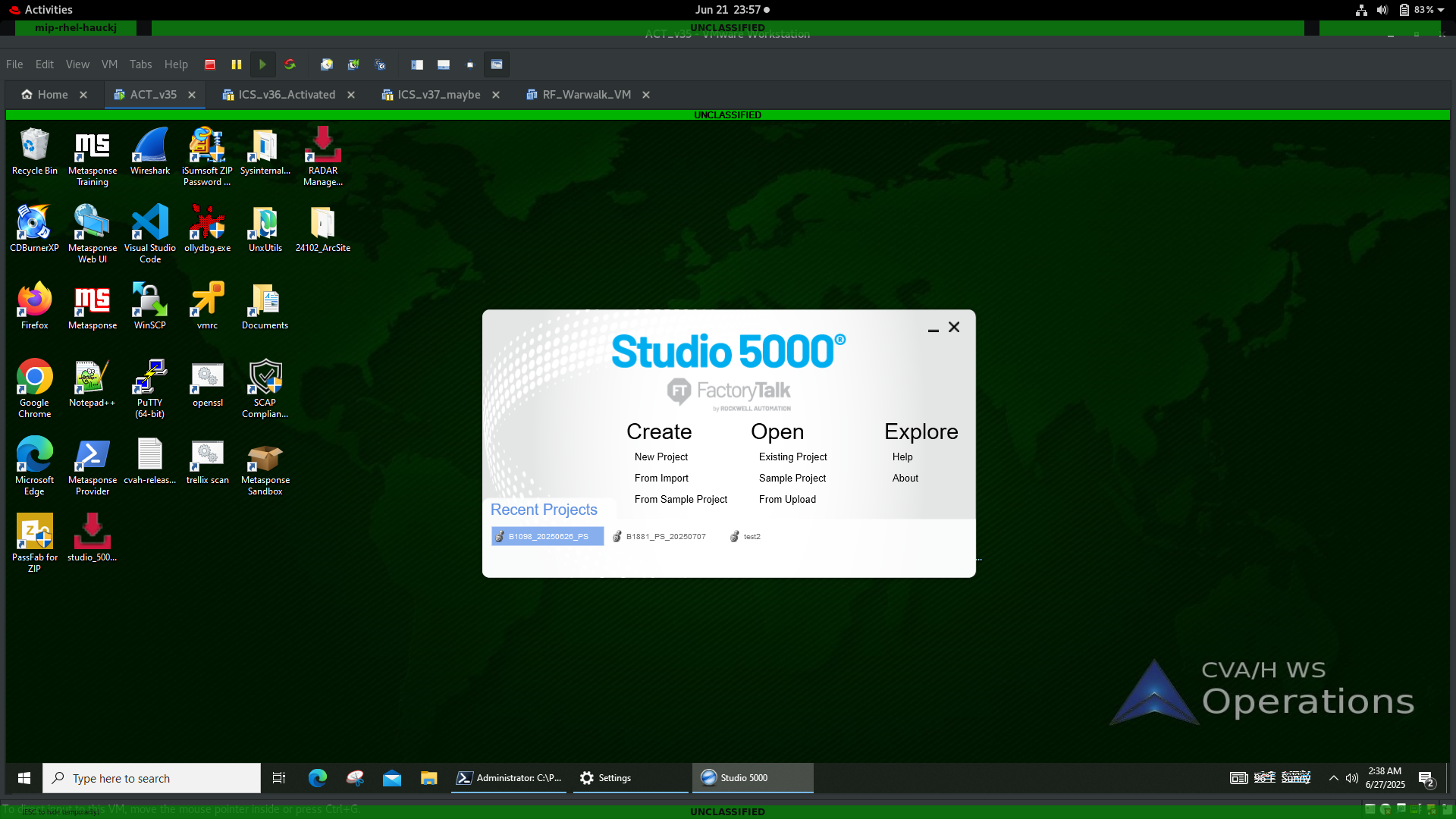
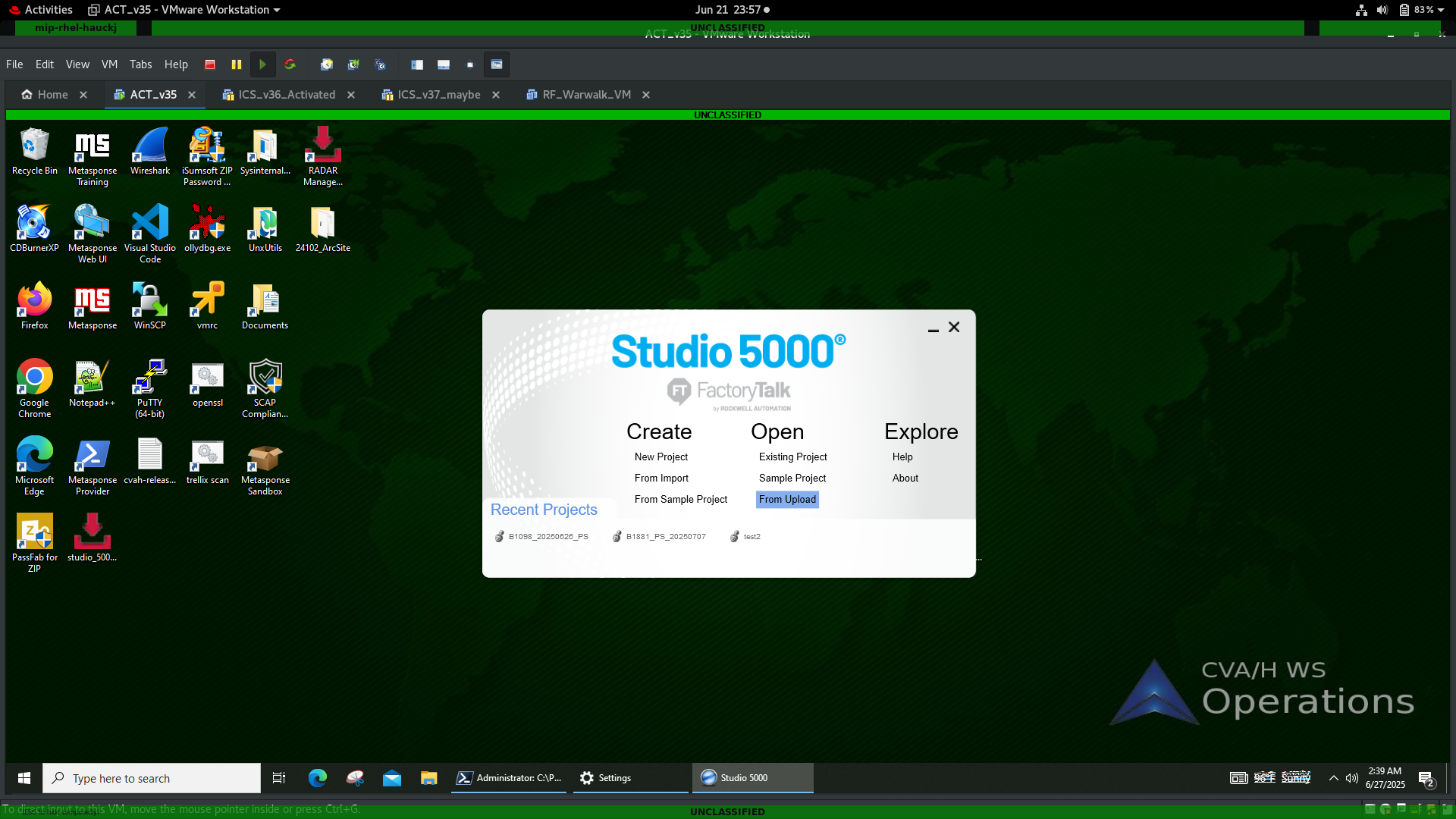
- From this menu, you want to choose From Upload under the Open section in the center of the menu.
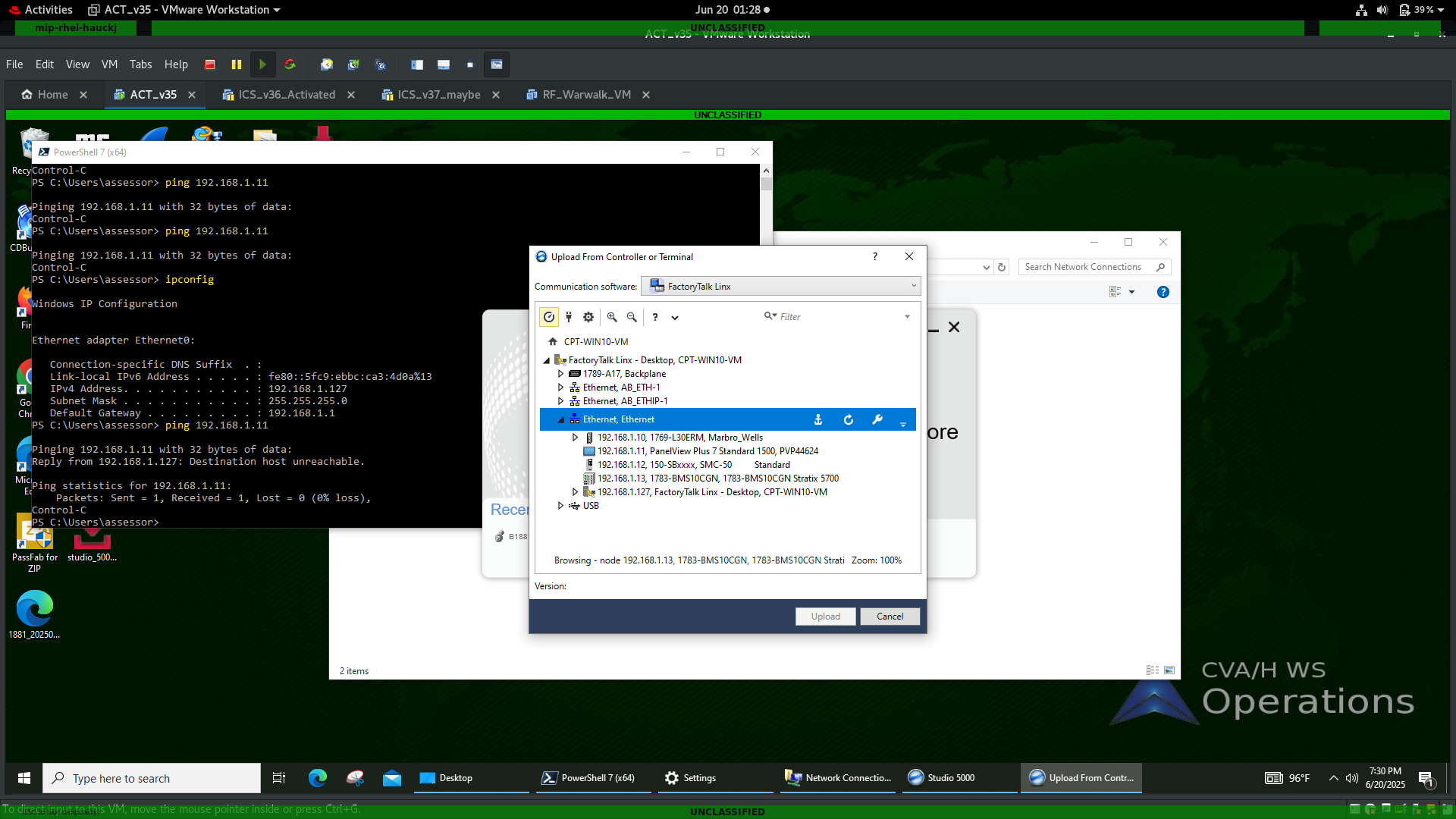
- Select Ethernet to show devices found on your network
- Select the PLC you want to Upload Configurations for
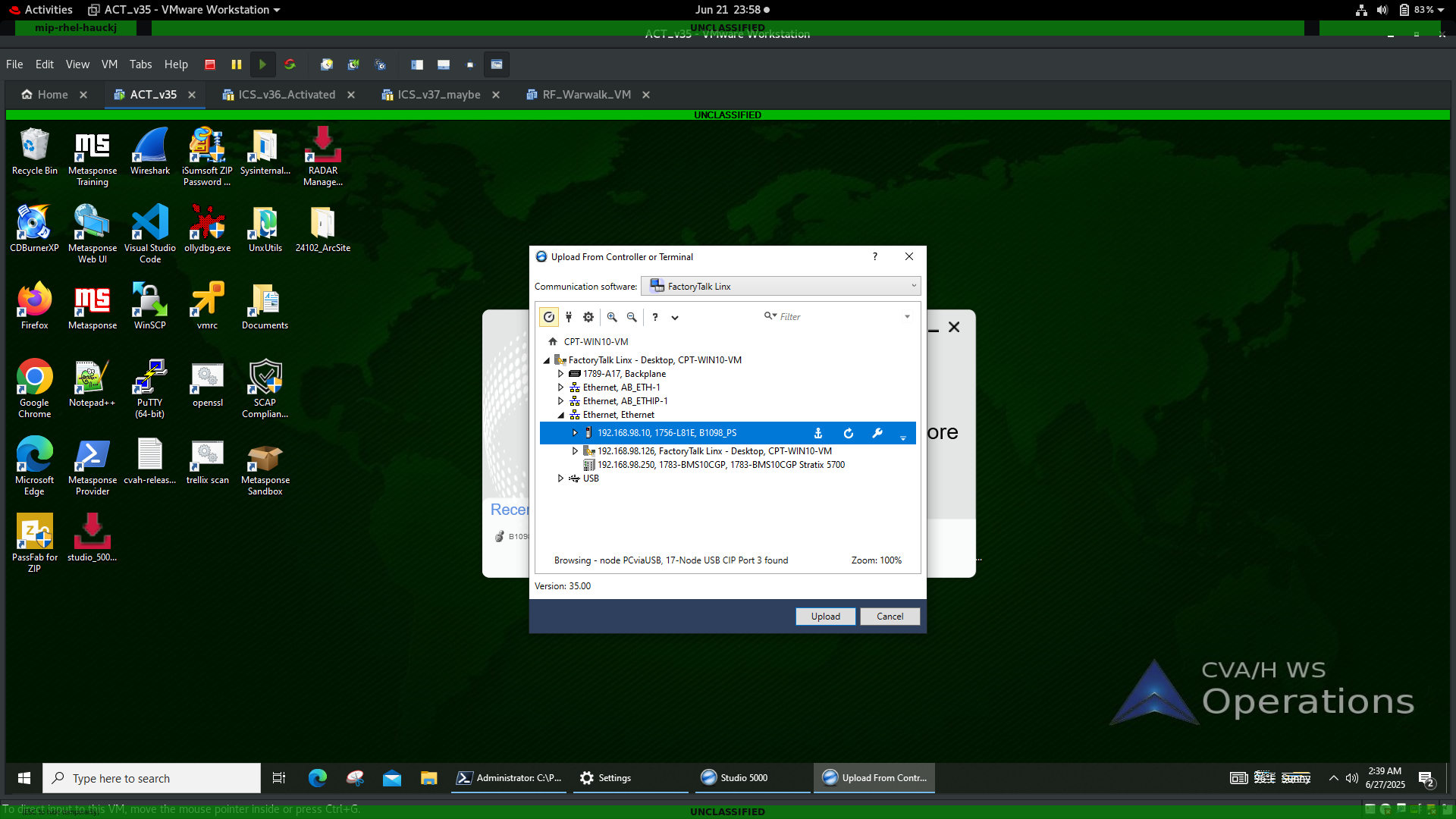
- From this menu, select Upload
note
Reminder that Upload is referencing from the PLC perspective - So uploading PLC configuration and logic is pulling from the PLC to your VM
- Next, you will be asked to Select File to save to. Click on Select File
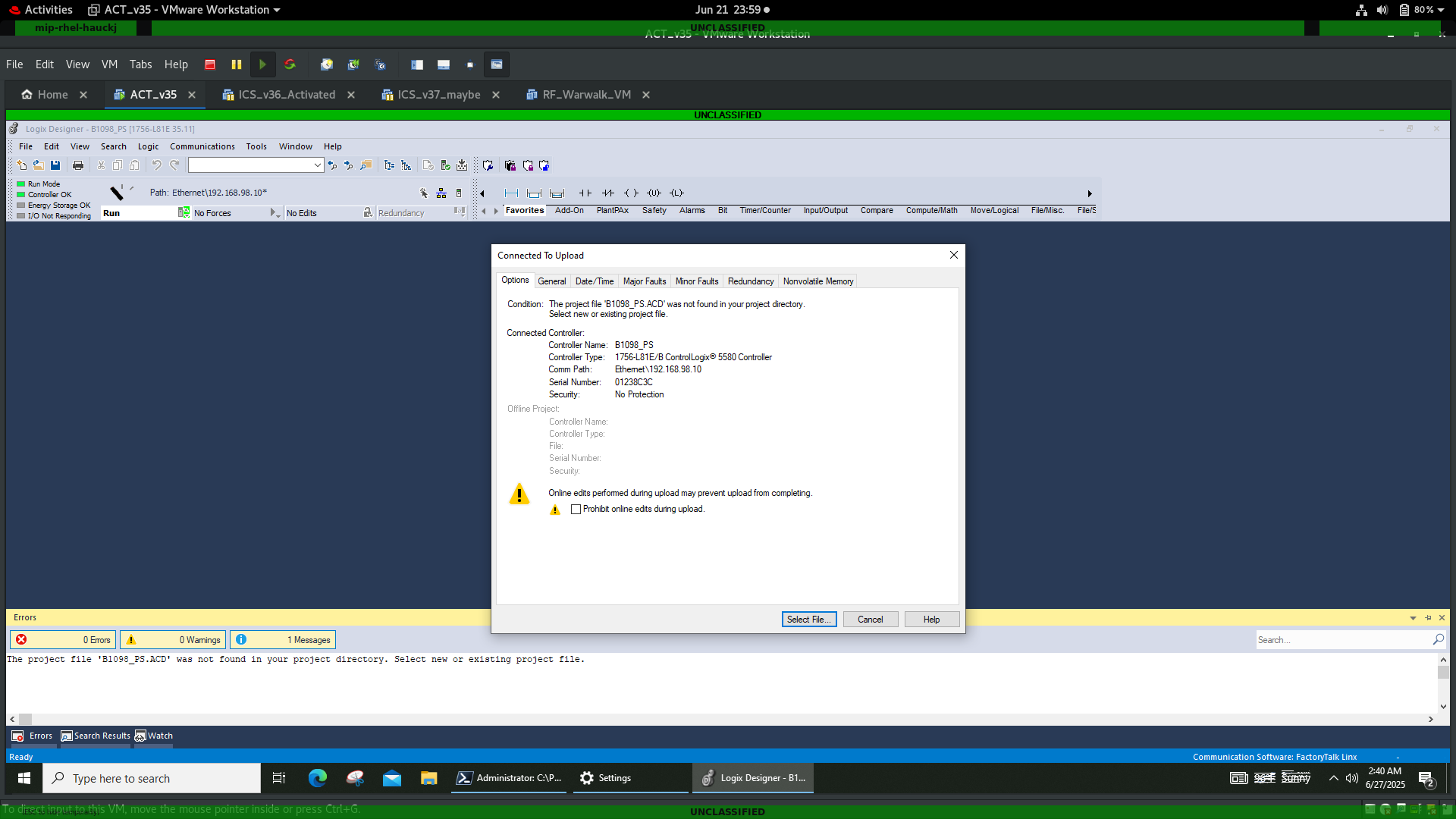
- Change the name to a naming convention according to your procedures and click on Select
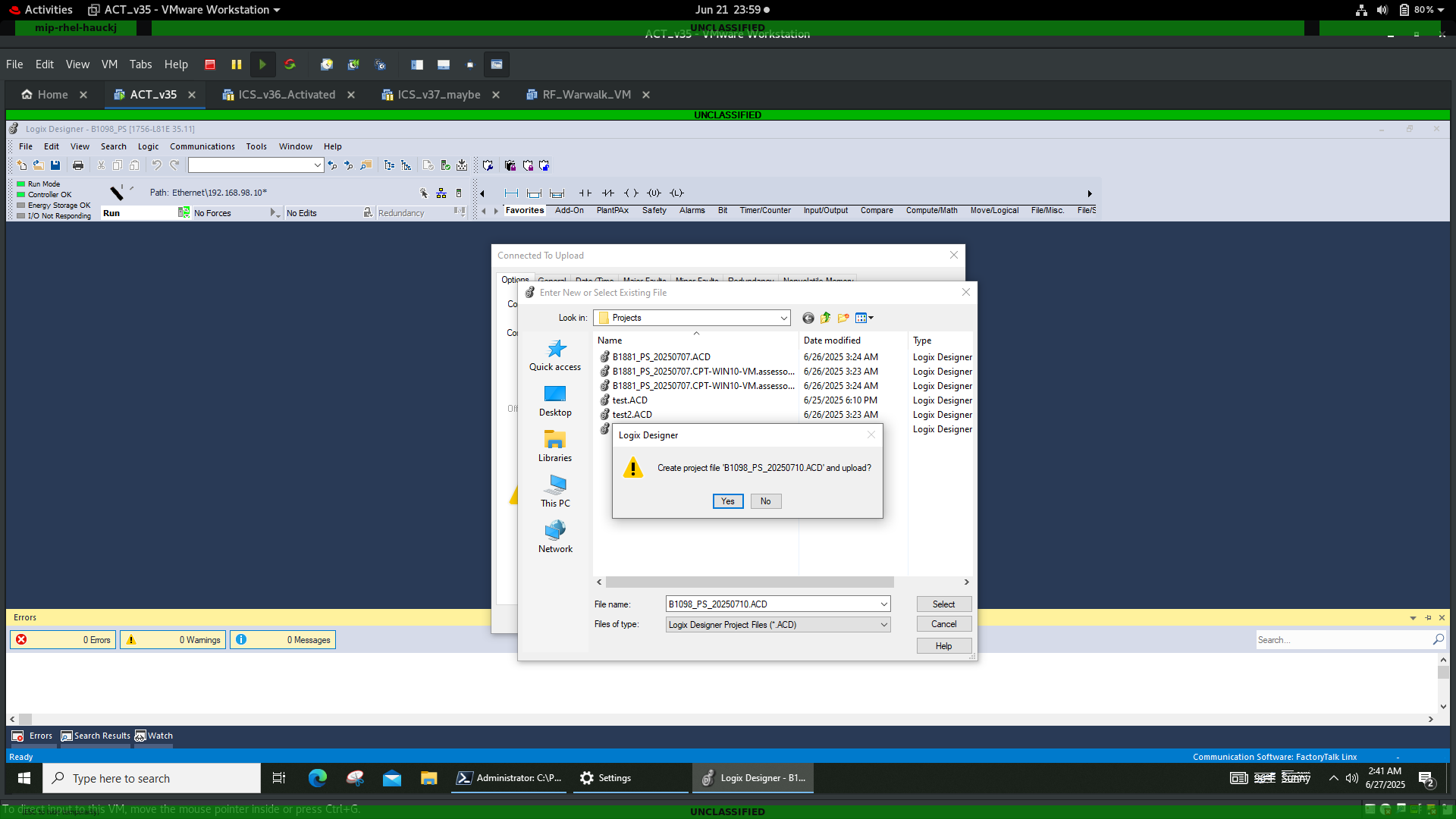
-
Click Yes when asked if you want to 'Create project file'
- This will initial the creation of your database
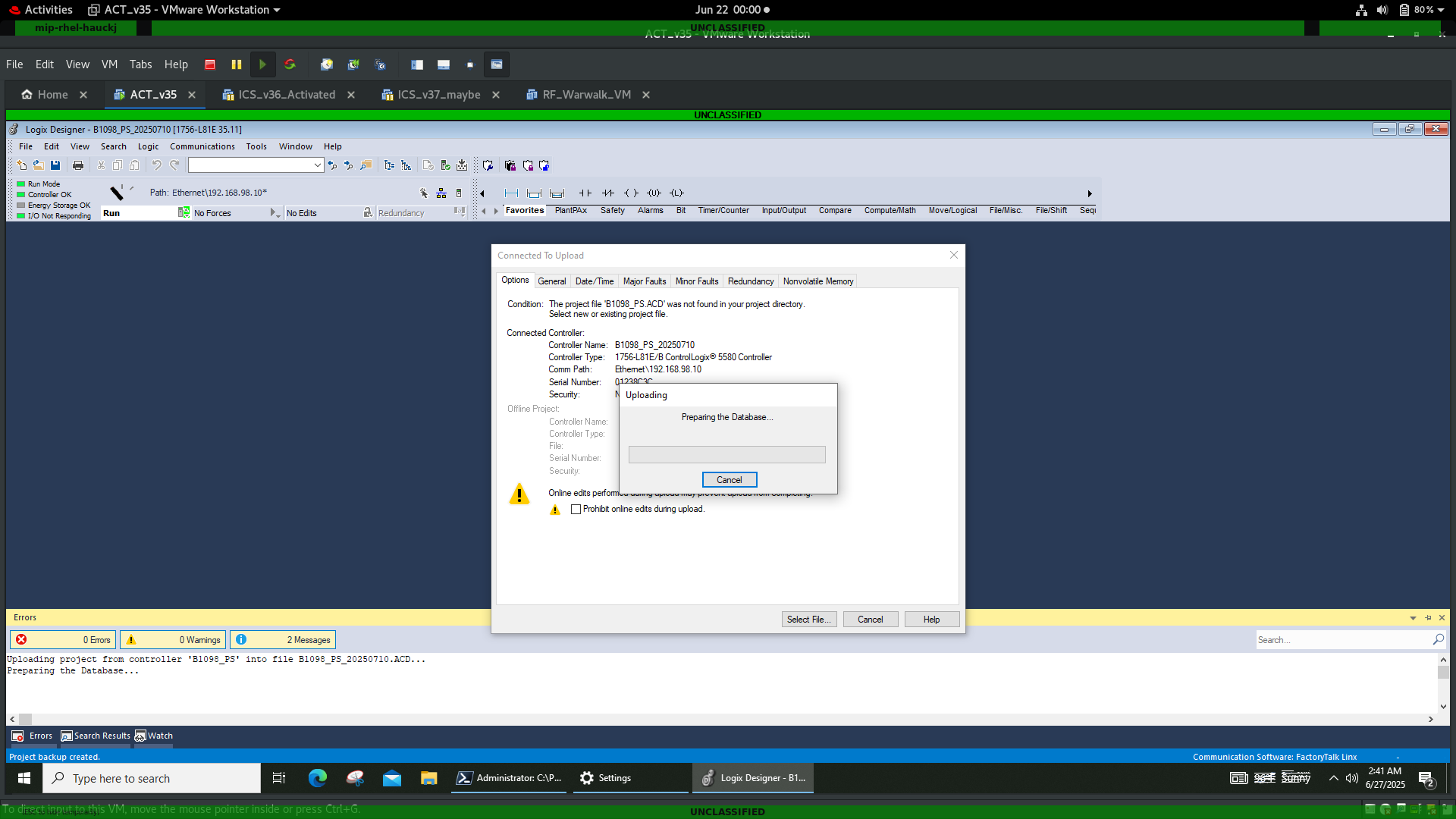
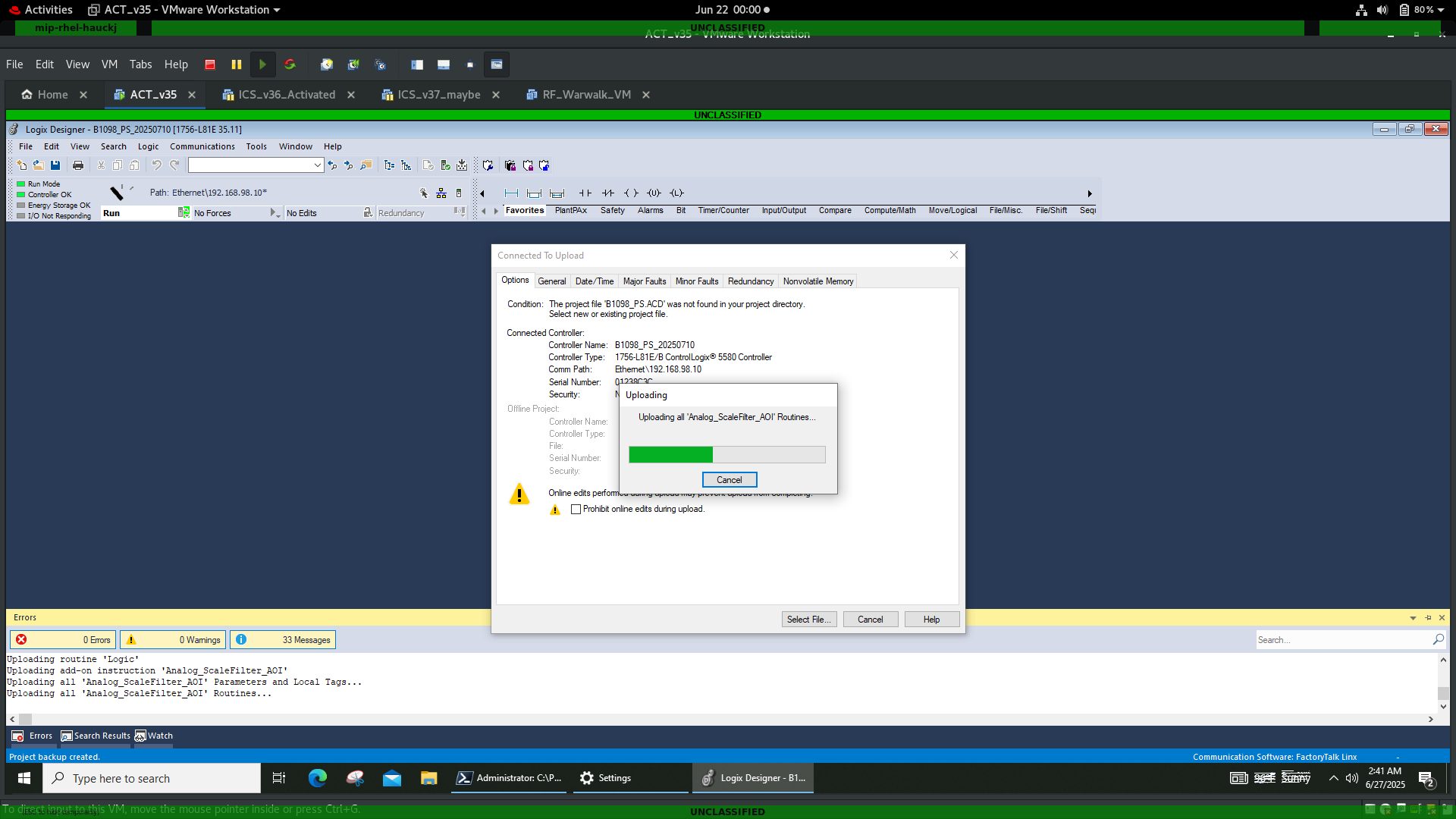
-
After the database is created, the main PLC congiguration page will look like this:
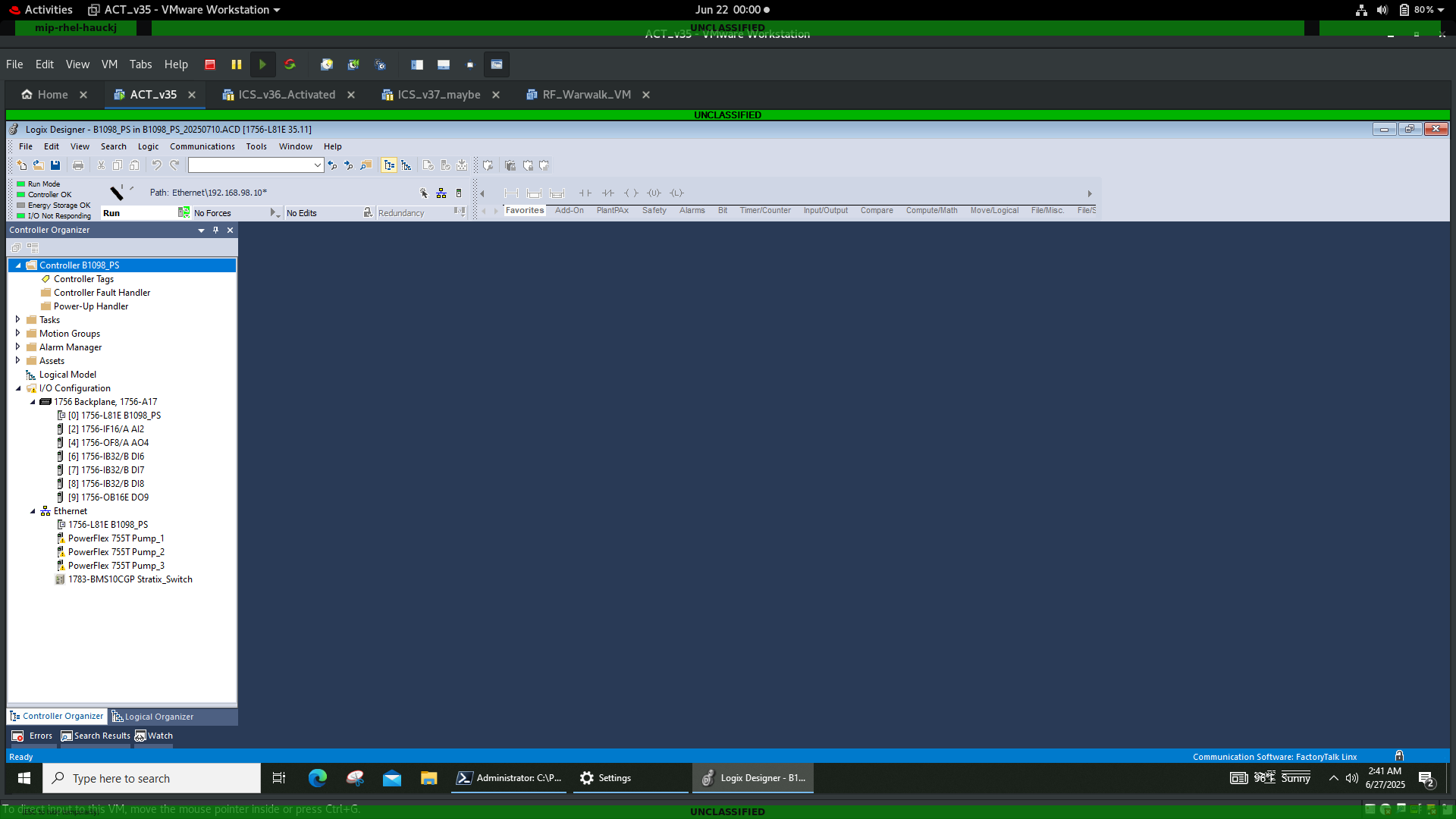
- For safe measures, you can click the save Icon and save your PLC project file. Select Yes when asked if you want to Upload tag values before saving project
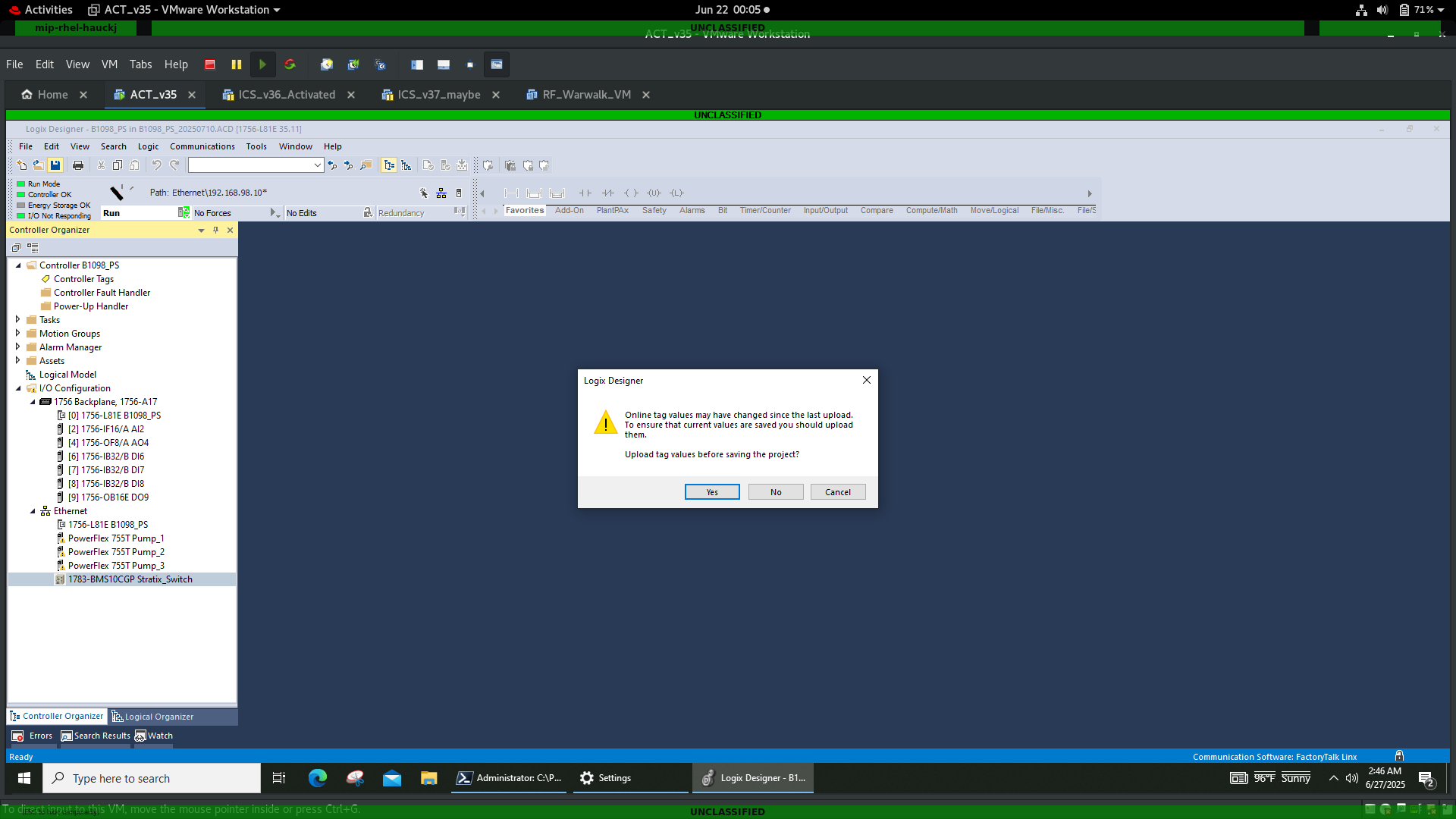
- You can now safely close Studio 5000 and disconnect from the switch.
warning
Never DOWNLOAD at any time without specific instructions to change PLC logic